
How to film a poker tournament and add graphics in OBS
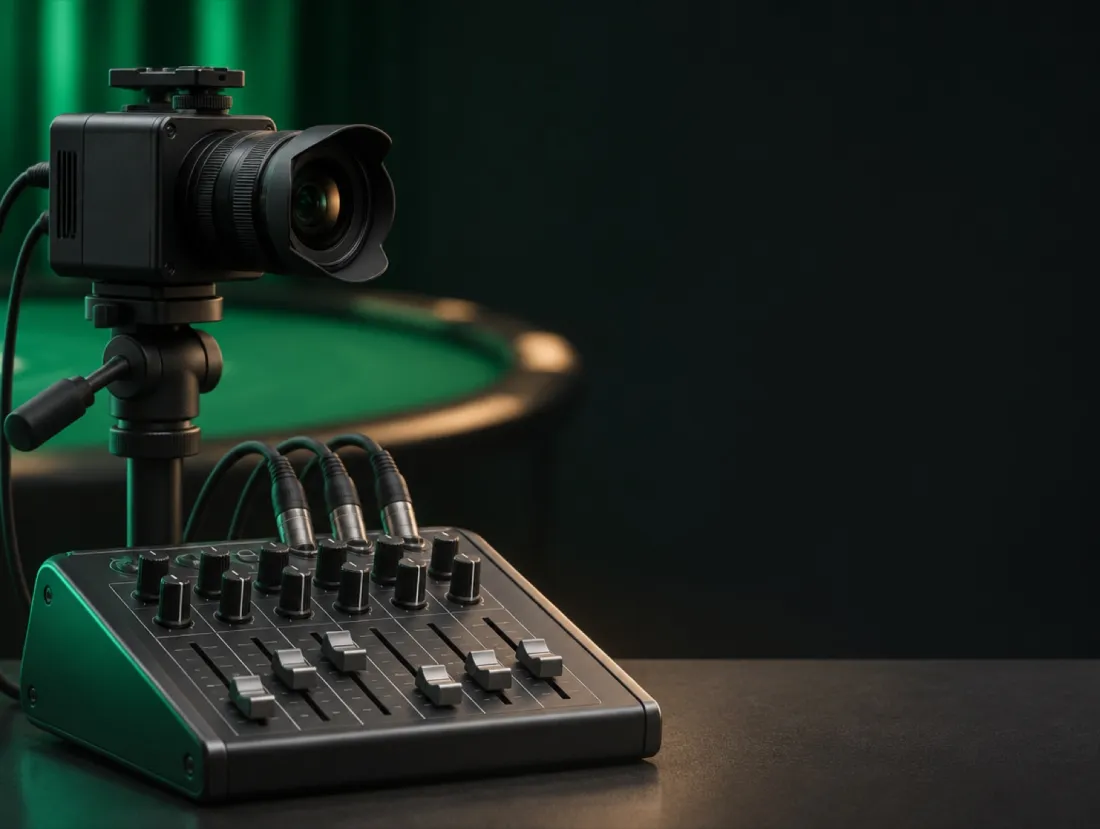
An OBS stream combines video, audio and graphics. The production team connects the cameras and microphones. SportPoker provides links that the operator adds to the OBS scene above the camera feed.
Which sources to add
- Add the cameras and audio to OBS. Decide which camera gives the wide shot and which captures the table in detail.
- Ask a staff member with TV table access for the graphics URLs from the console. One source shows the player seats. The other shows community cards, blinds and the pot. Share both URLs with the broadcast team.
- Add each URL to OBS as a Browser source. Put both graphics sources above the video in the source list.
- At the chosen resolution, check that the graphics are readable and leave the dealer’s hands and the important areas of the table visible.
What to check in a test recording
Record a short test hand and check the audio, image stability, seat numbers and how the graphics update during the hand. Play the recording from the viewer’s perspective and compare the video with the reported actions and pot.
Decide what the audience will see and when. Use the test recording to check when each card is revealed and what audio is heard. If your rules call for a delay, set it in OBS and test it before going on air.
Example recording
Watch how the camera feed and graphics work together in the SportPoker recording.
The embedded VK player uses third-party cookies and analytics.
Frequently asked questions
Who connects the cameras and audio?
The production team connects the cameras and audio in OBS. SportPoker provides the TV table graphics.
Do I need to design new graphics for OBS?
The console provides two source URLs. Add them to the right scene and position them over your camera view.
What should we send for a setup estimate?
Tell us which table and cameras you already have, how many seats need equipment and whether you will record or stream live.